Bulk Rename Files, Fix Wrong Extensions

SmartBatchRenamer reads file contents to detect the real format instead of trusting the filename. It warns about wrong or missing extensions without blocking the task, corrects them in one click, and saves batch rename rules for reuse.

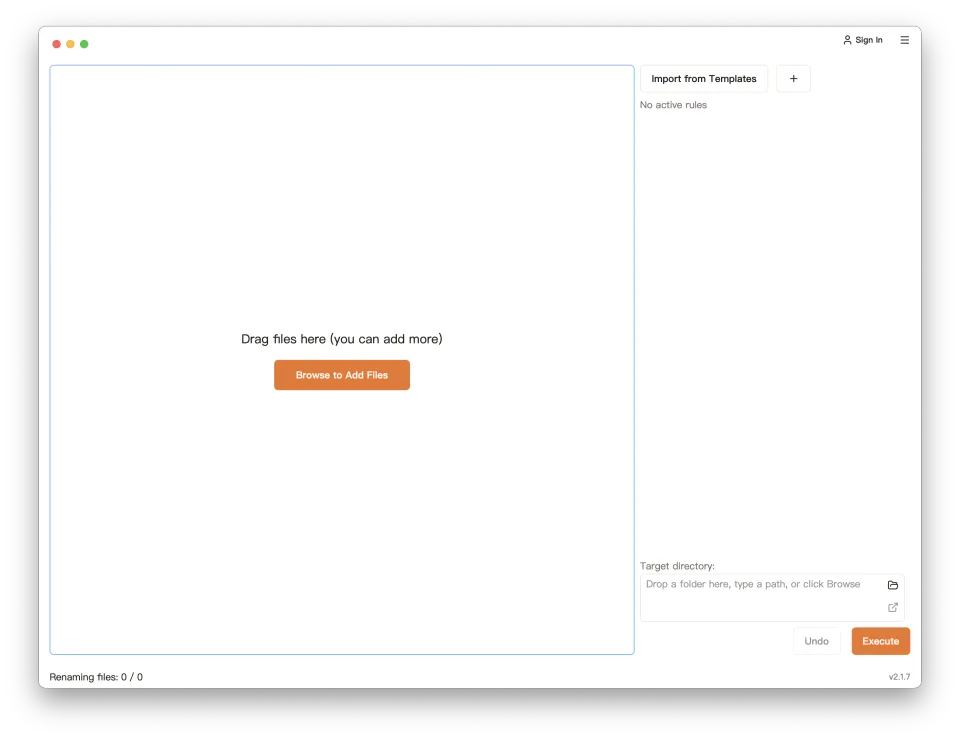
SmartBatchRenamer bulk rename tool previewing filenames and checking rename results

Detect the Real File Type. Correct the Extension.

Most rename tools only edit text. SmartBatchRenamer also inspects each source file's contents, finds wrong or missing extensions, and makes the correction part of the batch rename workflow.

  1. Detect Format from File Contents

    Inspect file signatures and internal structure to identify the real format. If the content is unknown, fall back safely to the source extension in lowercase instead of guessing.

  2. Distinguish Shared Containers

    Look inside formats that use the same ZIP container and tell DOCX, XLSX, PPTX, APK, EPUB, and JAR apart instead of labeling every one as ZIP.

  3. Warn, Then Correct in One Click

    Check every file, even when no other rule renames it. Warnings never block the task; after confirmation, the correction rule always runs after all active rename rules.

Extension correction examples

annual-report.zip annual-report.docx

Content is actually a Word document

travel-photo travel-photo.jpg

Missing JPEG extension detected

For truly equivalent spellings, you stay in control: choose jpg / jpeg / jpe, tif / tiff, or db / db3 / sqlite / sqlite3.

A Complete, Reusable Batch Rename Workflow

File Extension Detection & Correction

Identify the real format from file contents, flag wrong or missing extensions, and correct them as part of a batch rename.

Reusable Batch Rename Rules

Create a complete rename rule from insert, replace, and delete operations plus date, incrementing sequence, and random sequence parameters. Apply the same rule again when similar tasks come up.

Live Filename Preview

Preview every new filename before applying a batch rename. Step-by-step changes make it clear exactly what each operation changes.

Rename Conflict Detection

Automatically detect duplicate names inside the batch and same-name files in the target directory before anything changes.

One-Click Undo for Renames

Undo an executed batch rename with one click and restore every file's original name when a rule needs adjustment.

Dates, Sequences, and Reusable Parameters

Add date/time values, incrementing sequence numbers, and random sequences once, then reuse them across complex filename rules.

Product Showcase

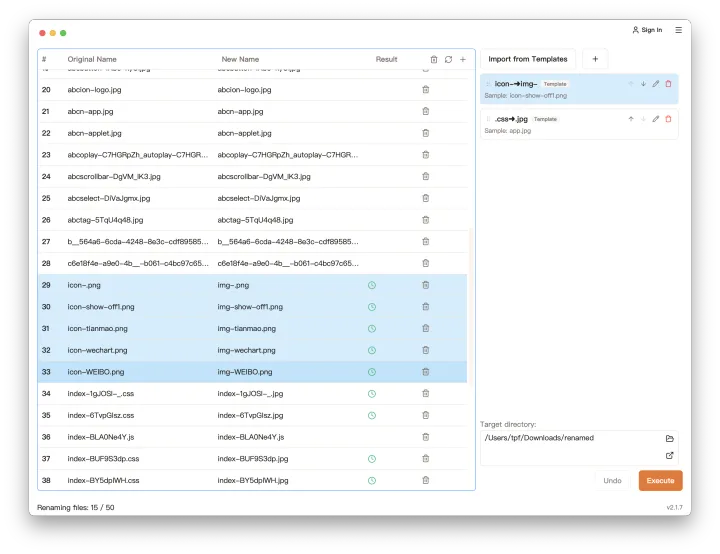
Drag, Drop, and Rename Multiple Files

Add files by dragging them straight into the window. The file list shows original names, new names, and results, with sortable columns for large batches.

SmartBatchRenamer file list for dragging files and bulk renaming multiple filenames

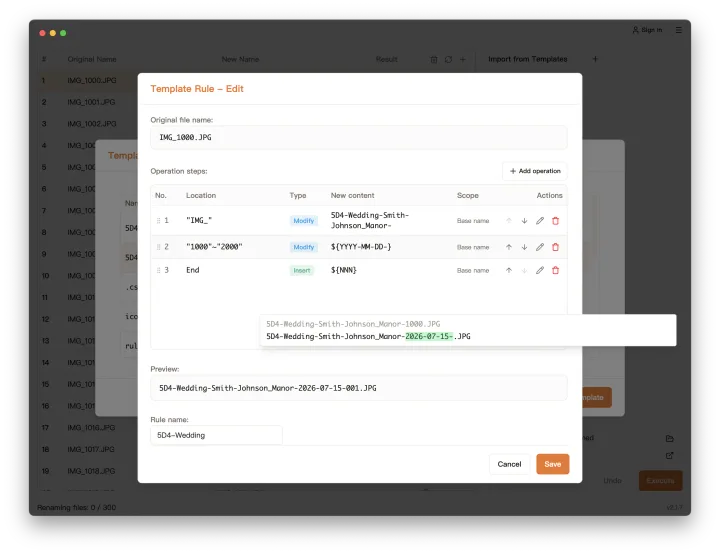
Preview Operation-by-Operation Filename Changes

As you add search-and-replace, delete, insert, numbering, or date operations to a rule, watch each filename transform step by step. Reuse the finished rule in later batches.

SmartBatchRenamer reusable rename rule preview showing filename search replace and numbering changes

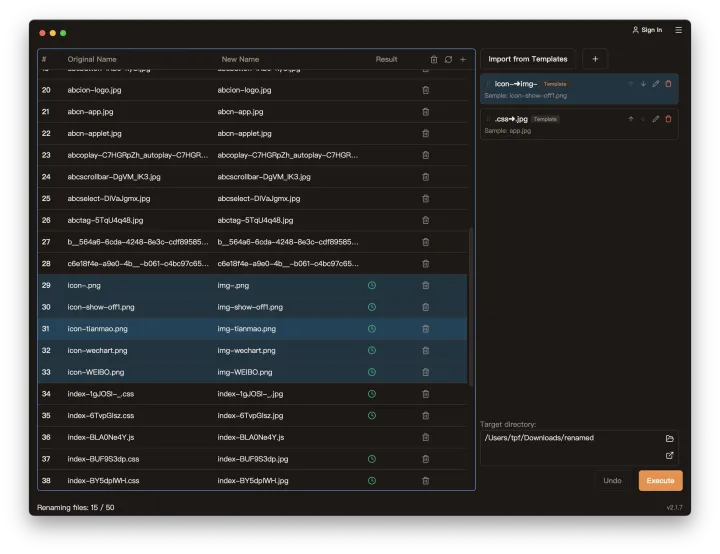
Dark Mode for Long Renaming Sessions

A carefully designed dark mode follows your system theme automatically, keeping long photo, document, and media file cleanup sessions comfortable.

SmartBatchRenamer dark mode for comfortable batch file renaming sessions

Where It Shines

Rename Camera Photos

Batch rename camera photos from Canon, Nikon, Sony, and other common filename formats by date or sequence number

Rename Phone Photos

Rename iPhone and Android photo files in batches so albums follow a clean timeline

Rename Documents

Apply consistent filename rules to contracts, reports, invoices, and other document batches

Clean Media Filenames

Standardize music and video filenames in batches to keep large media libraries organized

File Extension Detection and Batch Renaming Questions

How does SmartBatchRenamer detect the real file format?
SmartBatchRenamer reads signatures and internal structures from the file contents instead of trusting the filename. It can distinguish DOCX, XLSX, PPTX, APK, EPUB, and JAR even though they share a ZIP container. When content cannot be identified, it falls back to the existing extension in lowercase.
Can it correct a wrong or missing file extension?
Yes. Every file is checked even when no other rule changes its name. A mismatch produces a non-blocking warning; after you confirm the correction, the ExtName template rule always runs after all active rename rules.
Can I preview filenames before applying a batch rename?
Yes. Every rename rule updates the preview before execution, so you can compare original filenames with the new filenames first.
Which rename operations can I use in a rule?
SmartBatchRenamer supports insert text, search and replace, and delete-character operations. Operations can also use date/time, sequence number, and random sequence parameters, then be combined into a complete rename rule.
Can I reuse rename rules for future tasks?
Yes. After creating rules and saving them as template rules, you can reuse that rule set in later batch renaming tasks without rebuilding it from scratch.
Can I undo a batch rename?
Yes. After a rename is executed, one-click undo restores every file's original name.
Are my files uploaded during renaming?
No. File lists and rename operations are handled locally on your device, and file contents are not uploaded for batch renaming.

Get Started with SmartBatchRenamer

Download for free and experience the convenience of smart batch renaming